
Media Manager
1. Overview
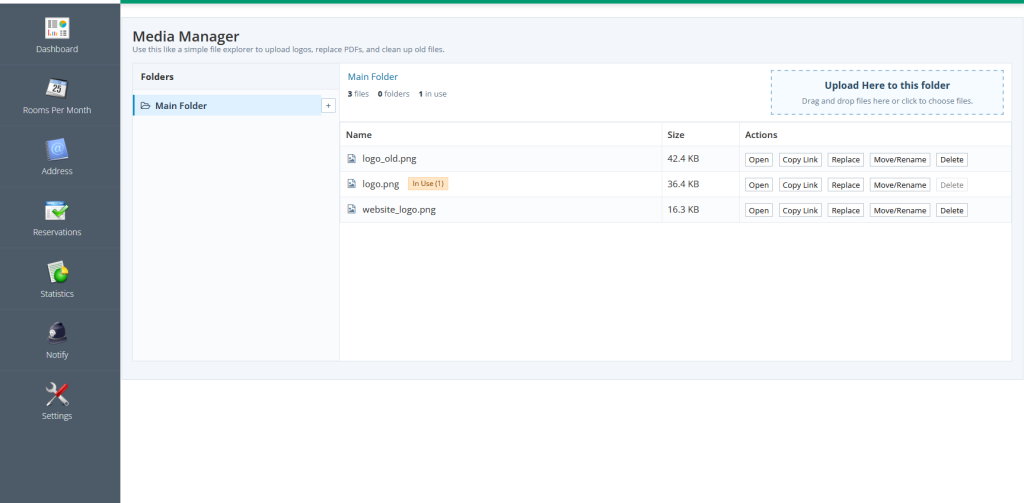
The Media Manager allows you to manage files used by CASY, such as images, PDFs, and other documents. It works like a simple file explorer, making it easy to organize the media used throughout the system.
With the Media Manager, you can:
- Upload new files
- Create subfolders
- Rename files and folders
- Replace existing files while keeping the same file reference
- Delete files that are no longer in use
2. Uploading Files
To upload a file:
- The file is uploaded and becomes immediately available within CASY.
- Open the Media Manager in the CASY settings.
- Select the destination folder.
- Drag and drop the file into the upload area, or click the upload area to browse for a file.
3. Organizing Files
You can keep your media organized by creating subfolders.
To create a subfolder:
- Select the folder where you want to create the new folder.
- Click the + button.
- Enter a folder name.
- Save the folder.
Folders can be used to group images and documents by purpose, such as logos, email attachments, or marketing material.
4. Managing Files
For each file, the following actions are available:
- Delete – Permanently removes the file if it is not currently in use.
- Open – Opens the selected file.
- Copy Link – Copies the file URL for use in templates or documents.
- Replace – Uploads a new version while keeping the same file reference. This is useful when updating a logo or document without changing existing links.
- Move/Rename – Moves the file to another folder or changes its name.
5. Files in Use
CASY detects when a file is currently being used by documents, email templates, or other parts of the system.
Files that are in use are marked with an “In Use” indicator.
To prevent broken links or missing images, these files cannot be deleted until they are no longer referenced.
6. Limitations
Please note the following limitations:
- The Media Manager is intended only for files used by CASY, such as images and documents.
- File names must not contain spaces. Use underscores (
_) or hyphens (-) instead. - Files that are currently in use cannot be deleted.
- Replacing a file keeps the existing file reference, so all documents and templates using that file are updated automatically.
7. Notes
The Media Manager helps centralize all media used by CASY, making it easier to maintain logos, PDFs, email images, and other shared resources from a single location.


