
Freeze Reservation
1. Overview
The Freeze Reservation feature allows you to lock a reservation to prevent accidental changes.
A frozen reservation cannot be moved or resized in the RoomPlan. This helps prevent unintended changes to room assignments or reservation dates.
Frozen reservations are marked with a pin icon, making them easy to identify.
2. Freezing a Reservation
To freeze a reservation:
- Click the Pin icon.
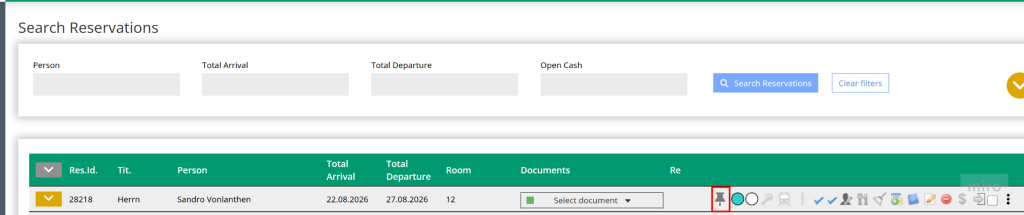
- Save the reservation, if required.

The reservation is now frozen.
3. Effects of a Frozen Reservation
A frozen reservation has the following restrictions:
- It prevents accidental modifications until the reservation is unfrozen.
- The reservation cannot be moved in the RoomPlan.
- The reservation duration cannot be changed by dragging it in the RoomPlan.
- Frozen reservations are marked with a pin icon in the RoomPlan.

4. Unfreezing a Reservation
To remove the freeze, click the Pin icon again.
Depending on your user permissions, you may not be allowed to unfreeze a reservation. To unfreeze reservations, the reservation_unfreeze permission must be enabled.
5. User Permissions
The ability to unfreeze a reservation can be controlled through user permissions.
For example, front desk staff may be allowed to freeze important reservations, while only team leaders or administrators can unfreeze them.
6. Hinweise
- Freezing a reservation is intended to protect important reservations from accidental modifications.
- Frozen reservations remain fully visible and can still be opened and viewed normally.
- The pin icon always indicates that a reservation is protected.


