
Pre/post Stay Email
In this article we describe how the Pre/Post Stay Email form works.
1. Prerequisites
The Pre/Post Stay Email form must be active.
2. The process
Pre Stay and Post Stay emails are sent automatically at a predetermined time.
If a Pre/Post Stay Email has already been sent to a particular email address, it will not be sent again automatically.
2.1 Checking sent emails
You can verify that the email was sent correctly.
- Open a reservation to which the email was sent.
- Access the drop-down menu of documents
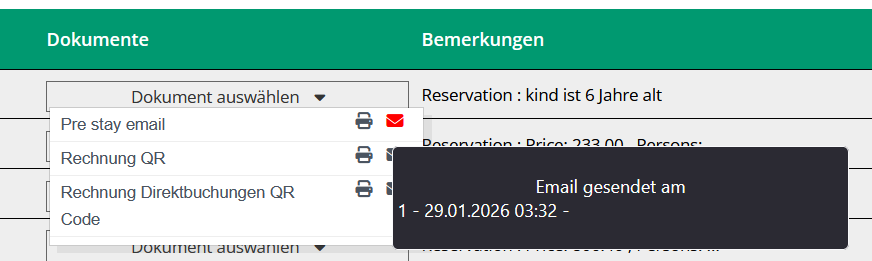
- Verify that the letter is highlighted in red
Hovering the mouse over the letter:
- the sending time is shown
- if no user abbreviation appears after the symbol
-, it means that the email was sent automatically by the system
3. Settings
There are two types of settings:
- Document settings
- Reservation settings and addresses
3.1 Setting Pre/Post Stay Email Documents
To set up a Pre/Post Stay Email:
- Access the Settings menu
- Enter the relevant submenu
- Create a new document
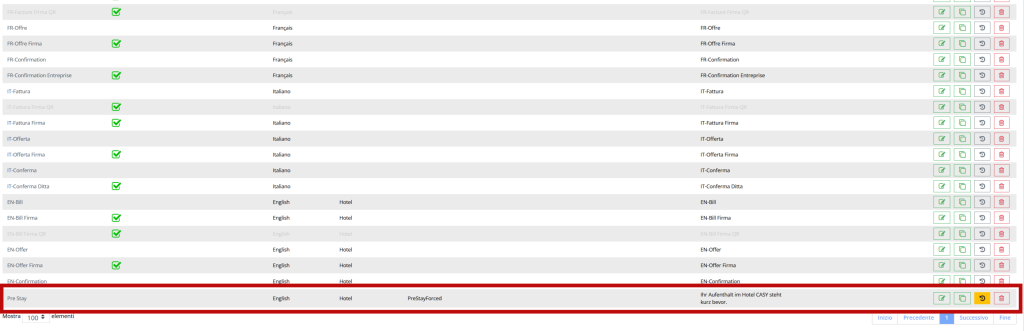
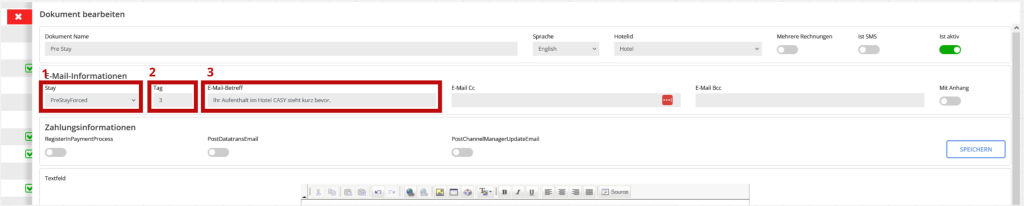
For Pre and Post Stay emails there are three basic settings:
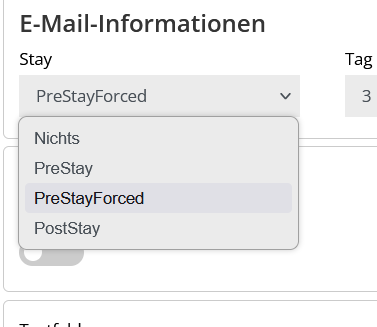
- Email type:
Three types of emails are available:- PreStay: Send email x days before client’s arrival.
- PreStayForced: Sends email x days before client’s arrival;
if reservation is entered less than x days before arrival, email will be sent at first available check. - PostStay: Sends the email x days after the client leaves.
- Days to send: Number of days before or after arrival/departure in which the email is to be sent.
- Email Subject: Title of the email that the customer will see in their inbox.
3.2 Reservation and address settings
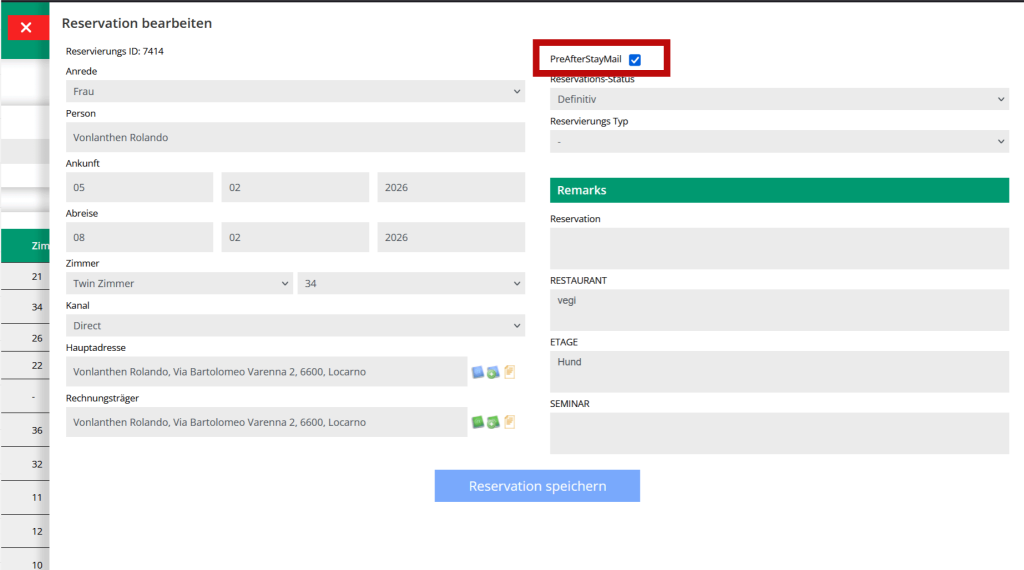
Disable sending for a reservation:
If you do not want to send emails for a specific reservation, you can disable the “PreAfterStayMail” checkbox in the reservation information.
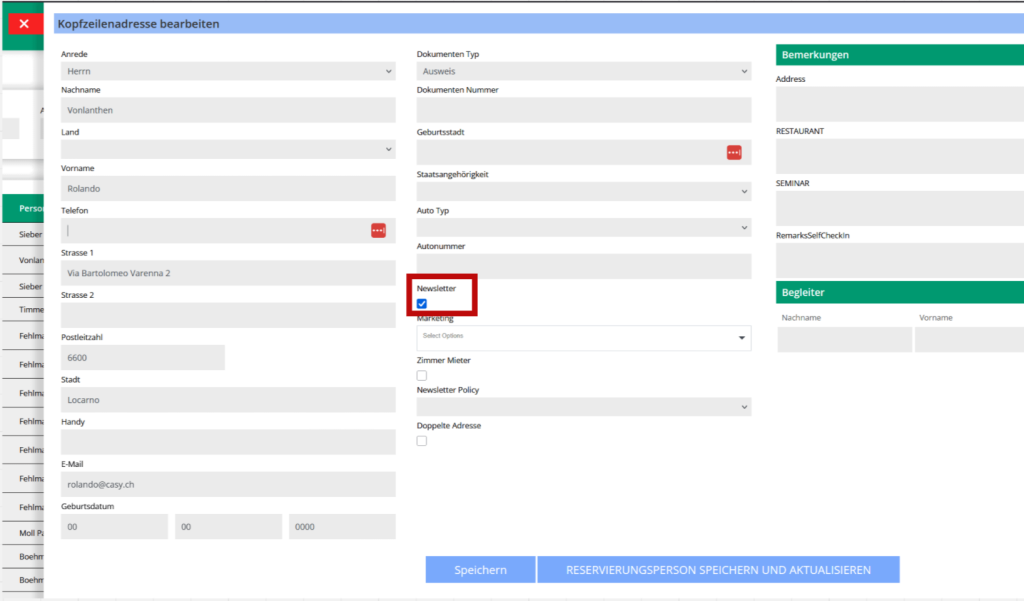
Disable sending for an address:
If you do not want to send emails to a particular address, you can disable the “Newsletter” checkbox in the address information.
By default, the email is sent automatically.
Disabling the checkboxes described above allows you to exclude individual reservations or specific addresses from sending Pre/Post Stay Emails.


