Housekeeping App – User Guide
This article explains how the Housekeeping App works and how to use it correctly.
1. Prerequisites
To use the Housekeeping App:
- You need access to CASY.
- You must have Housekeeping login credentials.
- The login credentials are provided by us.
2. Purpose
The Housekeeping Web App allows you to:
- View the room status for the current day
- Modify room status directly in the system
This access is intended for daily operational updates and is mainly used by housekeeping staff.
3. Parts of the Housekeeping App
This section provides an overview of the Housekeeping App and its functions.
3.1 Accessing the Housekeeping App (Web App)
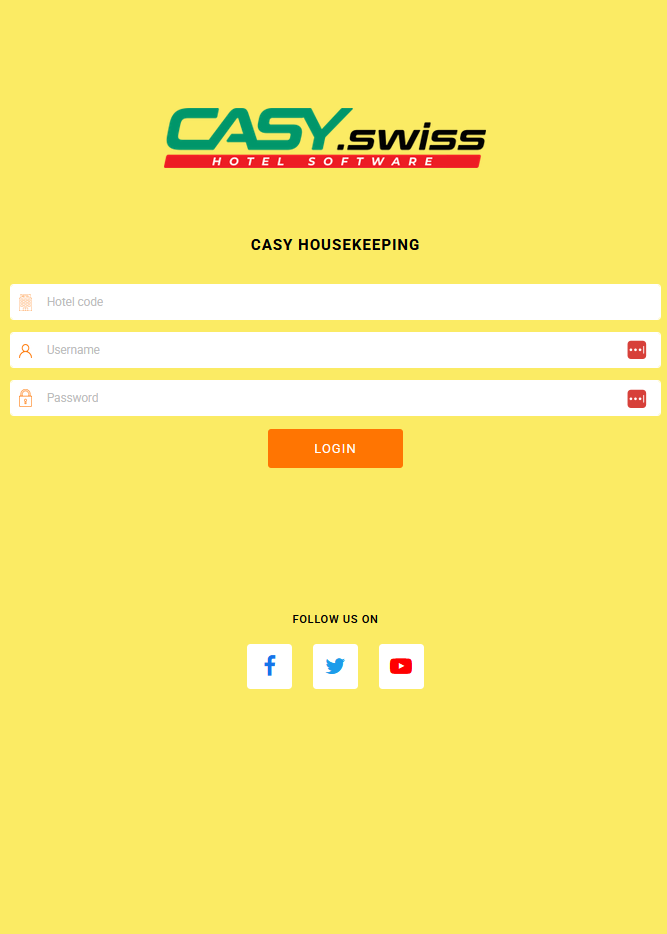
To access the Housekeeping App, open the following link in your browser: https://aws.casyfront.ch/casy-housekeeping
Log in using the credentials provided to you.
The app can also be installed on a mobile device for easier daily use.
3.2 Using the Housekeeping App
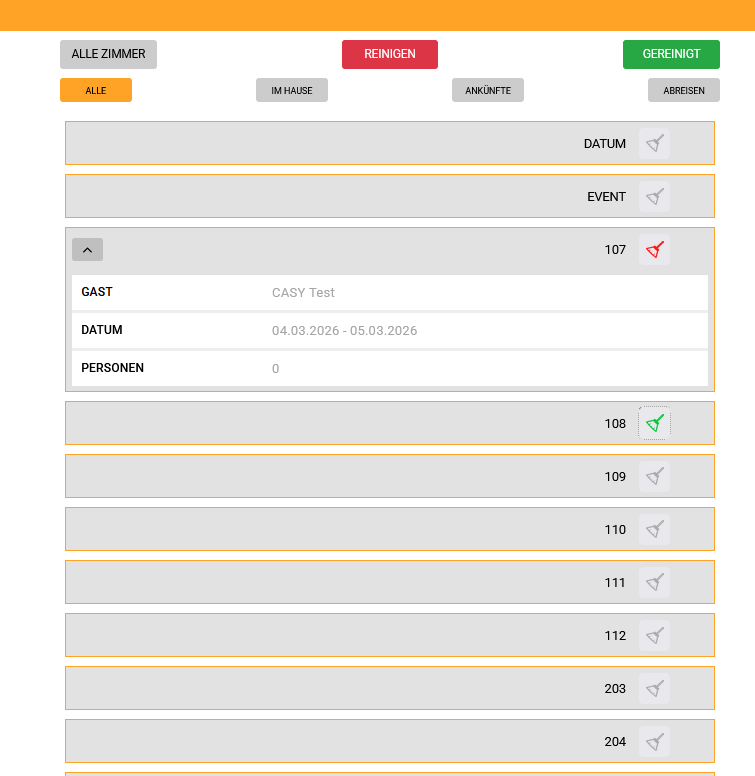
After logging in, you will see an overview of all hotel rooms.
Room List & Filters
- At the top of the room list, you will find different filters.
- These filters allow you to display rooms based on their status or occupancy.
- This helps you focus only on the rooms that require attention.

Guest Information
- By using the drop-down option for a room, you can see guest information for that day.
- This may include:
- The guest checking out
- The guest checking in
Changing Room Status (Broom Icon)
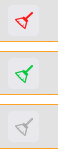
- On the side of each room, you can tap the broom icon to change the cleaning status.
- The meaning of each status color can be defined individually by each hotel.
- Example:
- 🟢 Green: Clean
- 🔴 Red: Dirty
- ⚪ Gray: To Check
Language Settings
The language of the app depends on the predefined language of the user account.
To change the language settings, please refer to the following guide:
https://helpdesk.casy.ch/index.php/helpdesk/settings/change-your-user-information/
4 Housekeeping Status in CASY
You can also log into the main CASY system using the same credentials (via the link provided to reception).
In CASY, you will find a broader reservation overview for future dates.
The housekeeping status is visible in two main areas:
4.1 In the Room per Month
In the monthly room overview:
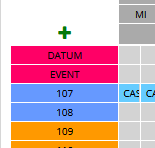
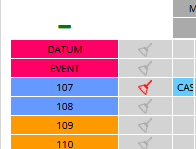
- Click on the “+” button to expand the room details.
- You will see all reservations assigned to that room.
- The current housekeeping status of the room is also displayed there.
4.1 Reservation Overview
In the Reservation Overview:
- You can see all reservations (In-house, Check-in, Check-out).
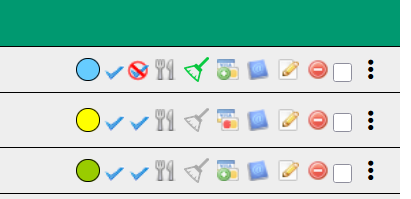
- The broom icon is visible next to the reservation.
- By clicking on the broom icon, you can change the housekeeping status directly.