Introduction to documents
In this chapter, you’ll learn how to view and edit the documents associated with a reservation and how to send them via email. An email can contain editable text and PDF attachments. The document settings determine which documents are used for the email body and which are added as attachments.
1. Prerequisites
There must be at least one reservation in the system. Next, open the list of reservations.
2. Open a document
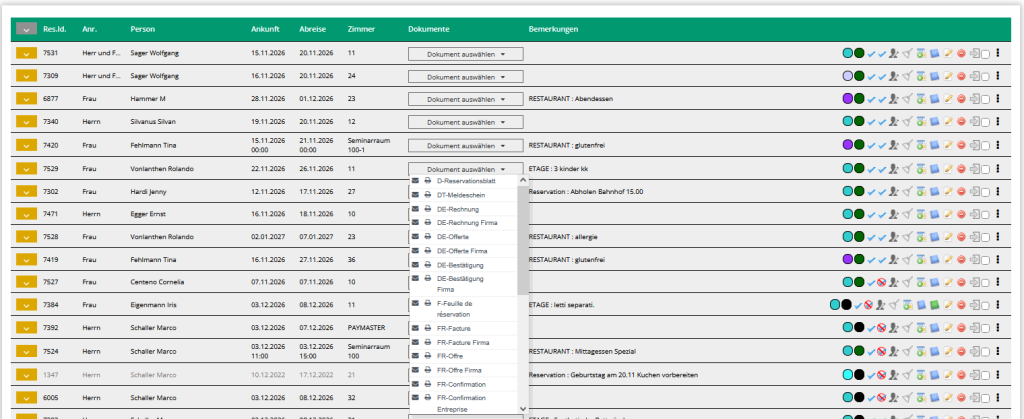
In the ” Documents ” column for the desired reservation, click ” Select Document.” Select the document you want from the list: a preview will open.
3. Elements of document preview
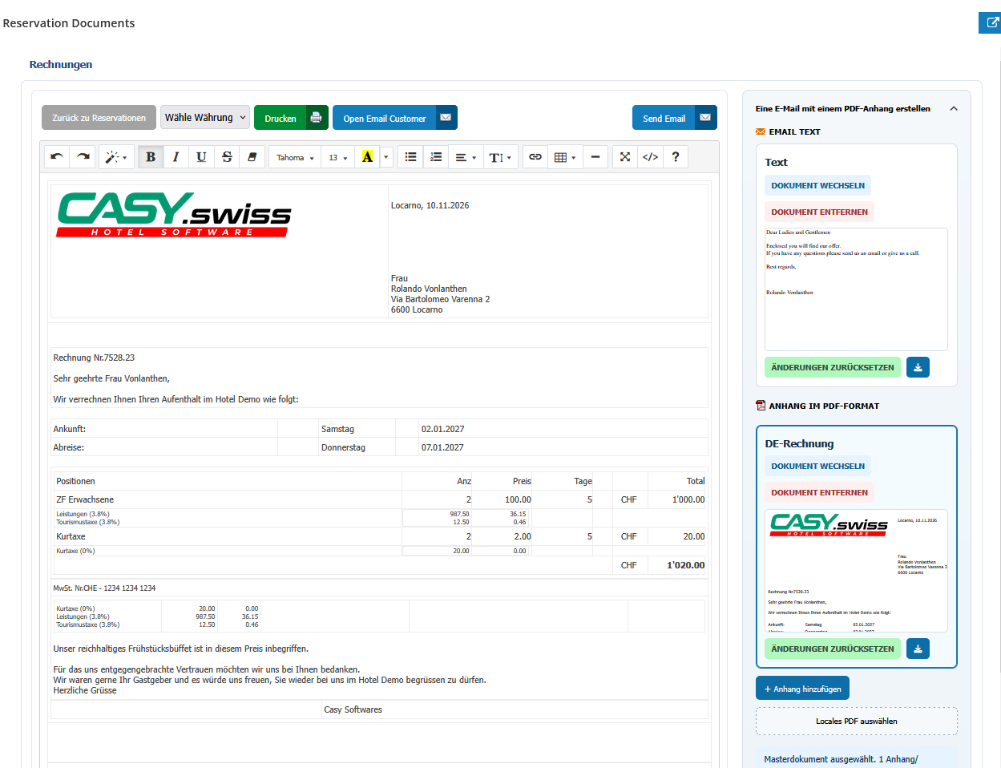
The preview shows the main document. The bar above the preview offers the following functions:
- “Back to Reservations ” closes the preview and returns you to the list of reservations.
- Select currency: If available, amounts will also be displayed in the selected currency.
- “Print ” opens the print dialog box, where you can print the document or save it as a PDF.
- “Open Guest Email ” opens an email addressed to the guest in the default email program.
- Send Email: Sends the email with the displayed text and the selected attachments.
You can edit the text directly in the preview. Use the formatting bar above the document to change, for example, the font, alignment, and lists, or to insert tables. The changes are included in the printout and the email.
4. Email body and PDF attachments
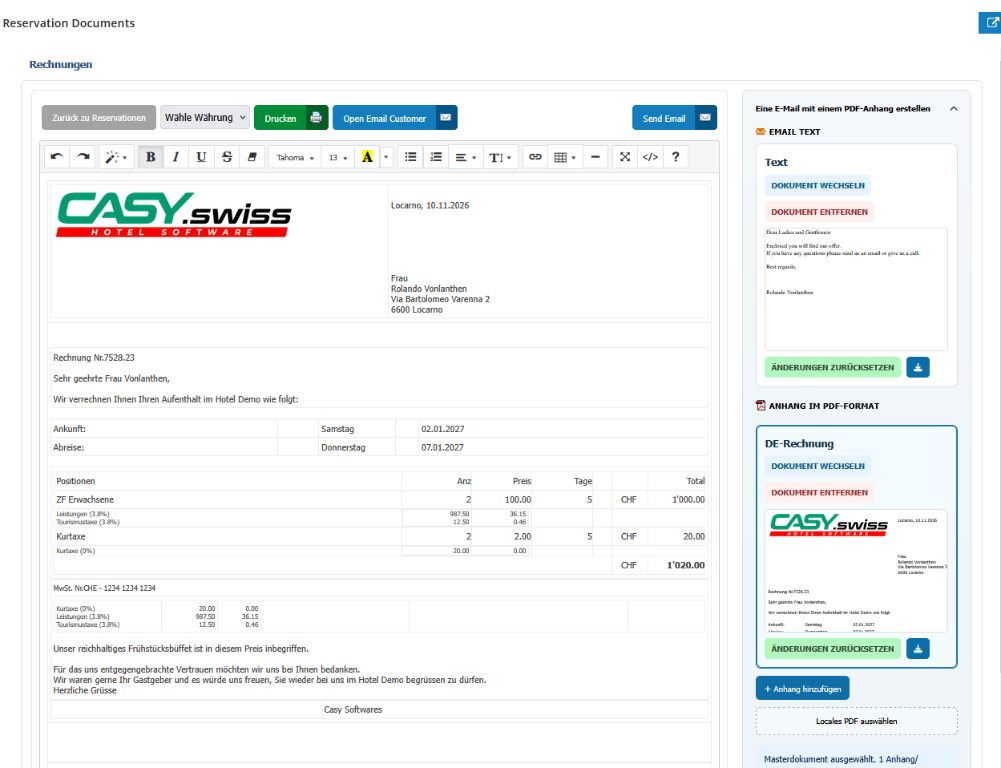
The document settings determine which document is used as the email body and which documents are attached as PDFs. In the panel to the right of the preview, you can edit this selection for the current email.
Email text
In the ” Email Text ” section, you can:
- Click ” Change Document ” to select a different text;
- edit the text directly in the field;
- Click ” Revert Changes ” to undo the changes and restore the original content;
- Click the download icon to download the document;
- Click ” Remove Document ” to remove the text from the current email.
PDF Attachments
The ” Attachments in PDF Format ” section displays the attachments selected for the email. For each attachment, you can:
- Click ” Change Document ” to select another document;
- Click ” Revert Changes ” to undo the changes you made to the document;
- Click the download icon to download the PDF;
- Click ” Remove Document ” to remove the attachment from the current email.
Click + Add Attachment to add another attachment. With ” Select a Local PDF,” you can choose a PDF file from your computer.
5. Send the email
Before sending, check the email text and the attachments you’ve selected. Edited documents are sent with the changes included.
- “Send Email ” sends the email directly.
- “Open Guest Email ” opens an email addressed to the guest in the default email program. From there, you can edit it and send it.
6. Status Notifications via Email and SMS
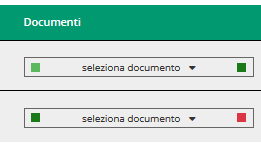
The colored fields next to ” Select Document ” indicate the status of the communication:
- The email status is shown on the left: light green means it was delivered, dark green means it was opened, and red means it could not be delivered.
- The SMS status is shown on the right, indicating whether an SMS has been sent and whether the SMS module is active. The colors indicate the status in a similar way; the opening confirmation is available only if supported by the SMS service.